Dec 27, 2013

E-Business Suite Plug-in 12.1.0.2 for Enterprise Manager 12c

E-Business Suite Plug-in 12.1.0.2 for Enterprise Manager 12c Now Available

Oracle E-Business Suite Plug-in 12.1.0.2.0 is now available for use with Oracle Enterprise Manager 12c.  Oracle E-Business Suite Plug-in 12.1.0.2 is part of Oracle Enterprise Manager 12 Application Management Suite for Oracle E-Business Suite. This latest plug-in extends EM 12c Cloud Control with E-Business Suite specific system management capabilities and features enhanced change management support.

The Oracle Enterprise Manager 12c Application Management Suite for Oracle E-Business Suite includes:
  • Functionality that was available in the previously-standalone Application Management Pack for Oracle E-Business Suite and Application Change Management Pack for Oracle E-Business Suite
  • Oracle Real User Experience Insight
  • Oracle Configuration & Compliance capabilities 
Licensing information 
A license for Oracle Enterprise Manager 12c Cloud Control is required to use this product. There is an additional licensing cost for the Application Management Suite for Oracle E-Business Suite.  A license for the Application Management Suite includes licenses for the E-Business Suite Plug-in, Oracle Real User Experience Insight, and Oracle Configuration & Compliance products.
This is a Development blog, and we don't have the background to discuss licensing in more detail.  We'd recommend contacting your Oracle account manager for more information about licenses. Updates to product bundling

Features that were previously available in the standalone management packs are now packaged in the Oracle E-Business Suite Plug-in, which is certified with Oracle Enterprise Manager 12c Cloud Control: 
  • Functionality previously available for Application Management Pack (AMP) is now classified as “System Management for Oracle E-Business Suite” within the plug-in.
  • Functionality previously available for Application Change Management Pack (ACMP) is now classified as “Change Management for Oracle E-Business Suite” within the plug-in.
The Application Configuration Console and the Configuration Change Console are now native components of Oracle Enterprise Manager 12c.
EBS Plug-in 12 screenshot
New enhancements in this release
General
  • Support for managing E-Business Suite R12.2 technology stack including monitoring of Web Logic Server services.
  • New ADF pages that allow personalization of System Management home page and E-Business Suite landing page.
  • New landing page displays all available E-Business Suite targets, Compliance summary, least compliant targets, and related Incidents summary.
  • All tabs and links have been moved to drop down menus for easy navigation.
Compliance Framework
  • Integrated with Enterprise Manager Compliance Framework and includes shipped Security Compliance Standards for Oracle E-Business Suite.
Customization Manager
  • Oracle E-Business Suite Release 12.2 Readiness Report: Customization Manager now includes an option to generate the Oracle E-Business Suite Release 12.2 customization readiness report for online patching directly from the UI. Customers who are currently on Oracle E-Business Suite Releases 11i, 12, or 12.1 can run this report to validate if their customizations are ready for Oracle E-Business Suite Releases 12.2 online patching. Customers who are currently on Oracle E-Business Suite Releases 11i, 12.0, or 12.1 can run this report to validate if their customizations are ready for Oracle E-Business Suite Release 12.2 online patching.
  • Auto-correction of invalid custom applications
  • Support for source code branches and tags
  • Option to hide unused custom applications
  • "Create like" feature for file source mapping and Oracle E-Business Suite Mapping
  • Detailed status messages for packages
  • Option to download a consolidated log for package creation
  • New file type to support force upload of seed data LDT files
Patch Manager
  • Simplified Oracle E-Business Suite R12.2 online patching deployment procedures.
  • New Patch Manager Dashboard allows patch management for all releases of Oracle E-Business Suite instances. Patch Manager dashboard provides a consolidated and personalizable view of all patching activities for all Oracle E-Business Suite instances.
  • Customers now can view all the AD worker log files without the need for command line operations.
Setup Manager Installation & Upgrades
  • Customers currently running on Enterprise Manager 12c, can use Self Update to download and install AMP 12.1.0.2.0.
  • All others can download it here:
  • Oracle Software Delivery Cloud
Prerequisites
  • Enterprise Manager Cloud Control 12c
  • One or more of the following Oracle E-Business Suite Releases
    • Release 12.2.2
    • Release 12.1 with R12.ATG_PF.B.delta.3
    • Release 12.0.4 with R12.ATG_PF.A.delta.6
    • Release 11.5.10 CU2 with 11i.ATG_PF.H.RUP6 or higher

Apr 21, 2011

Oracle E-Business Suite Integrated SOA Gateway Overview

Oracle E-Business Suite Integrated SOA Gateway is a complete set of service infrastructure. It supports almost all integration interface types and services invoked within Oracle E-Business Suites no matter if they are Oracle seeded integration interfaces or custom ones, if they are native packaged interfaces or the services that are orchestrated using native services.

With this pre-built, reusable business services and service-oriented components, Oracle E-Business Suite Integrated SOA Gateway provides a capability of allowing various users to perform different tasks and to monitor and manage service integration throughout the entire service deployment life cycle.

Major Features

Oracle E-Business Suite Integrated SOA Gateway contains the following features:
  • Provide robust, consistent integration framework with extensive infrastructure based on SOA principles
  • Integrate loosely coupled and heterogeneous applications
  • Contain pre-built and reusable business services
  • Provide native service enablement capability within the Oracle E-Business Suite
  • Use native services as building blocks to create composite services
  • Support annotated custom integration interfaces from Oracle Integration Repository
  • Enforce function security and role-based access control security to allow only authorized users to execute administrative functions
  • Support multiple authentication types for inbound service requests in securing Web service content and authenticating Web service operations
  • Provide centralized, user-friendly user interface for logging configuration
  • Enable Web service invocation from Oracle E-Business Suite
  • Audit and monitor Oracle E-Business Suite service operations from native SOA Monitor

Business Process Scenario

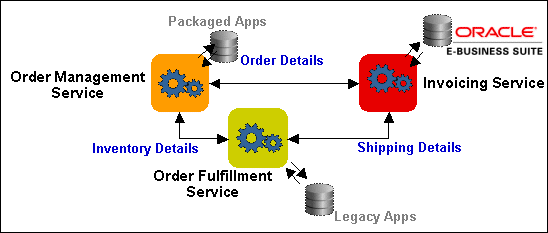
Oracle E-Business Suite Integrated SOA Gateway provides a seamless integration between various applications. Take the most common business process such as Order-to-Receipt as an example to further explain how discrete web services can be orchestrated into a standards-based manner and more meaningful end-to-end business flow.
Order-to-Receipt Business Flow Between Applications
the picture is described in the document text
The packaged application is used to capture the order. The legacy application is used to fulfill (pick and ship) the order. Oracle E-Business Suite is used to invoice the customer.
  • Sales Order Entry: Packaged Application
  • Item Availability Check: Legacy Application
  • Pick, Pack and Ship : Legacy Application
  • Invoicing and A/R: Oracle E-Business Suite
A complete Order-to-Receipt business flow may require to integrate with each of the above applications at different points. With Oracle E-Business Suite Integrated SOA Gateway, the public integration interfaces of E-Business Suite can be exposed as standard Web services.
Each individual business process mentioned here managed by packaged application, legacy application, and Oracle E-Business Suite can be orchestrated using Oracle BPEL Process Manger (PM) to streamline the Order-to-Receipt business process.
Process Integration Within Oracle E-Business Suite Integrated SOA Gateway
the picture is described in the document text

Oracle E-Business Suite Integrated SOA Gateway Architecture Overview

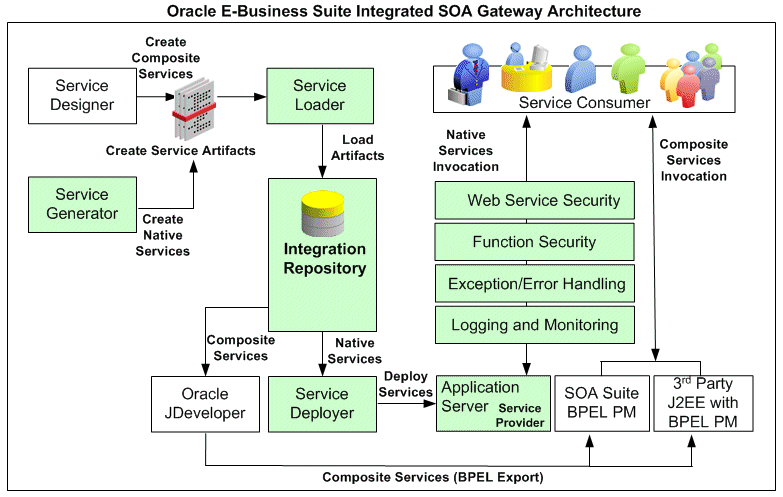
Oracle E-Business Suite Integrated SOA Gateway employs essential key components that enable service integration at design time and run time, and ease the service management throughout the entire service integration and deployment life cycle.
The seamless integration between each component forms the Oracle E-Business Suite Integrated SOA Gateway architecture.
The following diagram illustrates the integration architecture flow between each component:
the picture is described in the document text
All the native packaged public integration interfaces are published in the Oracle Integration Repository by default. Integration repository administrators can then transform these native integration interfaces into Web services through service generator. Service loader uploads service artifacts to Oracle Integration Repository. Service deployer deploys service artifacts from the Integration Repository to the application server where services can be exposed to customers through service provider.
Service provider identifies and processes inbound SOAP requests from service consumers, reinforces function security and Web service security, as well as passes all SOAP request and response messages to SOA Monitor (if the monitoring feature is enabled) for further monitoring SOAP messages to ensure the seamless service invocations throughout the entire service life cycle.
For composite services, system integration developers orchestrate composite services using Oracle JDeveloper. Service loader then uploads these service artifacts to Oracle Integration Repository. Users granted with the Download Composite Service privilege can further download the BPEL files to their local directories. Integration repository developers can open the downloaded BPEL files in Oracle JDeveloper, modify and deploy them if needed. Oracle BPEL Process Manager (BPEL PM) or 3rd party J2EE BPEL PM will then pick up deployed composite services which can be invoked from the Oracle E-Business Suite

Oct 6, 2010

Exposing E-Business Suite services using the Integrated SOA Gateway

Oracle E-Business Suite Release 12 introduced a new “Integrated SOA Gateway” that makes it very easy to expose functionality from E-Business Suite as web services.  This allows much easier integration to and from E-Business Suite.
In this post, we look at how to expose a piece of functionality in E-Business Suite as a service.  Here we are using Oracle E-Business Suite 12.1.2, a “Vision” system.
First we log on to E-Business Suite as the SYSADMIN user.
Next we navigate to the Integrated SOA Gateway responsibility and into theIntegration Repository, as shown in the image below.
For this example, we will use the Price Request.  This is found under Order Management Suite then Advanced Pricing and Price List as you can see highlighted on the left hand side of the image below.  Then select Price Request from the list of integration points.  You will see a screen like the one below, that provides details of this integration point.  You can see that in this case, it is a PL/SQL API.  On the top right of this screen, there is a new button called Generate WSDL that we can use to easily expose this PL/SQL API (or any other integration point) as a web service.  Click on that now.
After two or three seconds you should get a confirmation message, like the one below, to let you know this was completed successfully.  Next we need to enable this new service.  This is done by clicking on the Deploy button which is highlighted in the image below.
Again, after a few seconds, your screen should update to look like the one below.  You can now see a link to the service description (WSDL) that can be used to call this service from other applications, systems, etc.
You can click on that View WSDL link to see the WSDL code.  Below is the first part of the WSDL for the above example.
Note: Make sure you open the WSDL in a new window or tab, we are not finished with this page yet!  You can do this by right clicking on the link and selecting Open in new tab or similar from the popup menu (this varies from browser to browser).
The final step is to grant access to the service, so that we will be able to invoke it.  To do this, we expand the list of operations in the last part of the interface page in Integration Repository , then check the box next to the interface we want to grant access to, and click on the Grant Access button.
Now enter the username for the user you want to grant access to, or use the search button to find the user.  In this example, it will be sufficient to grant access to ASADMIN.
Then save your changes.  Your screen should now look like this:

Nov 21, 2009

Prebuilt BPEL Templates for Oracle R12 EBS

The Oracle EBS R12 product team has developed custom prebuilt BPEL business processes for the following modules:
  •    Oracle Price Protection
  •    Complex Maintenance, Repair, and Overhaul
  •    Oracle Transportation Management
  •    Supply Chain Trading Connector
  •    Advanced Supply Chain Planning
  •    Product Information Management
These prebuilt BPEL processes have been certified with Oracle BPEL Process Manager 10g version 10.1.3.5 (in Oracle SOA Suite 10.1.3.5) for Oracle E-Business Suite Release 12.1.1 and higher.
Information about using these prebuilt SOA integrations can be found in My Oracle Support Note 755067.1: Using Oracle BPEL 10with E-Business Suite Release 12.1.1 or Higher(http://support.oracle.com). Oracle support is available with a valid customer support contract for issues that arise in integrating the SOA Suite adapter with the Oracle E-Business Suite.

Apr 12, 2008

Writing a Java Concurrent Program

Steps in writing Java Concurrent Program

Template Program:

Copy the template Java Concurrent Program from $FND_TOP/java/cp/request/Template.java to your directory and start coding according to your requirement. Change file name and class name to your required name as Java Concurrent Program name.
================= Template.java===========================
package oracle.apps.fnd.cp.request;
// Change the package name to the required one.
// import all the other required classes/packages.
import oracle.apps.fnd.util.*;
import oracle.apps.fnd.cp.request.*;
// Change the name of the class from Template to your
// concurrent program class name
public class Template implements JavaConcurrentProgram
{
   /** Optionally provide class constructor without any arguments.
    *  If you provide any arguments to the class constructor then while
    *  running the program will fail.
    */
   public void runProgram(CpContext pCpContext)
   {
        ReqCompletion lRC = pCpContext.getReqCompletion();
        String CompletionText = "";
        /* Code your program logic here.
         * Use getJDBCConnection method to get the connection
* object for any JDBC operations.
         * Use CpContext provided commit,rollback methods to
* commit/rollback data base transactions.
         * Don't forget to release the connection before returning
* from this method.
         */
        /* Call setCompletion method to set the request completion
* status and completion text.
         * Status values are ReqCompletion.NORMAL,ReqCompletion.WARNING,
         * ReqCompletion.ERROR.
         * Use Completion text message of length 240 characters.
* If it is more than 240 then full string will appear in
* log file and truncated 240 characters will be used as
* request completion text.
         */
         lRC.setCompletion(ReqCompletion.NORMAL, CompletionText);
    }
}
==================End of Template.java===========================

program Logic


Implement the runProgram with your Java Concurrent Program business logic. runProgram() gets the CpContext .  CpContext is a subclass of AOL/J AppsContext which provides the request specific member classes LogFile to write to request log file, OutFile to write to request output file and ReqCompletion to set the completion status of the request. 
Program Parameters 
CpContext uses the AOL/J utility Parameter List to pass the parameters to the Java Concurrent Program.
Please refer AOL/J Parameter list to get the Parameter List name, value pairs. You will be referring parameter list name as the parameter name and corresponding value as the parameter value in the Java Concurrent Program. You have to register the parameter names as token name in the register concurrent program form Parameter screen. 

Database Operations 
Use getJDBCConnection method to get the connection object for any JDBC operations within program and release the connection to the AppsContext connection pool. Use CpContext's commit(), rollback() methods to commit or rollback the transactions in the database. These methods will set the program proffered rollback segments after commit or rollback segments for the rest of the database transaction in the Java Concurrent Program. 
Setting request Completion Status 
Call setCompletion() method of the ReqCompletion object which is a member of CpContext before returning from your Java Concurrent Program to set the completion status for the program and optional completion text. 

Register executable

Register your Java Concurrent Program class name as execution_file_name and package name in execution_file_path in register concurrent executables form

Register Concurrent Program

Register you Java Concurrent Program as concurrent program in the register concurrent program form. Register all the parameters that you want to pass to the program in the parameter screen of this form. Register the Parameter List names referred in the program as the token names in the parameter screen.

Test Program from OS Prompt

You can test your Java Concurrent Program from OS prompt by using the following syntax: 

jre -Ddbcfile= 
            [ -Drequest.logfile=
            [ -Drequest.requestid=
            [ -Drequest.outfile=
            [ -Drequest.userid=  ] 
            [ -Drequest.respapplid=
            [ -Drequest.respid=
            [ -Drequest.secgrpid=
            [ -Drequest.enabletrace=
            oracle.apps.fnd.cp.request.Run  
            [

     Example: 
     jre -Ddbcfile=/d2/fnd/secure/appsnode_appdb.dbc 
          -Dreqeust.requestid=23453 -Drequest.logfile=./myreq.log 
           oracle.apps.fnd.cp.request.Run oracle.apps.wip.program.MyProg 
           "TOKEN1=value1:TOKEN2=value2"
If you don't specify the 'request.logfile' with -D option then the all the log file information will be printed to the standard output. Specify the 'request.requestid' to rerun already completed request. You can specify the all the application user specific context values with -D to get the specific user context to the program when run from the OS prompt. Pass all the parameters if any by using the AOL/J Parameter list syntax.

Sample Program

package oracle.apps.fnd.cp.request;
import java.io.*;
import java.sql.*;
import oracle.apps.fnd.util.*;
public class AvailableProg implements JavaConcurrentProgram
{
   String applName;
   public AvailableProg()
   {
        // if no parameter value is specified for
// APPLNAME then use FND as default value
        applName = "FND";
   }
   public void runProgram(CpContext pCpContext)
   {
        // get the JDBC connection object
        Connection mJConn = pCpContext.getJDBCConnection();
        // get parameter list object from CpContext
        ParameterList lPara = pCpContext.getParameterList();
        // get ReqCompletion object from CpContext
        ReqCompletion lRC = pCpContext.getReqCompletion();
        String lQuery =
                " select substr(user_concurrent_program_name,1,70) , " +
                " decode(enabled_flag,'Y','Enabled','N','Disabled') " +
                " from fnd_concurrent_programs_vl cp, fnd_application_vl a " +
                " where cp.application_id        = a.application_id " +
                " and a.application_short_name = ? " +
                " order by 1 " ;
        // check for the APPLNAME parameter token name and if it there get
        // value and use it as the application short name in the query
        while (lPara.hasMoreElements())
        {
                NameValueType aNVT = lPara.nextParameter();
                if ( aNVT.getName().equals("APPLNAME") )
                        applName = aNVT.getValue();
        }
        try
        {
           PreparedStatement lStmt = mJConn.prepareStatement(lQuery);
           lStmt.setString(1, applName );
           ResultSet lRs = lStmt.executeQuery();
           // get OutFile object from CpContext
           OutFile lOF = pCpContext.getOutFile();
           // get LogFile object from CpContext
           LogFile lLF = pCpContext.getLogFile();
           lLF.writeln("Generating Programs for Application : "  + applName,
                      LogFile.STATEMENT);
           lOF.writeln(
           "                Available Concurrent Programs for Application " +
                         applName );
           lOF.writeln(
           "Concurrent Program Name                             Enabled");
          lOF.writeln(
           "----------------------------------------------" );
         while( lRs.next() )
           {
                lOF.writeln(lRs.getString(1) + "   " + lRs.getString(2) );
           }
           lLF.writeln("Generated Programs for Application : " + applName,
                     LogFile.STATEMENT);
           lStmt.close();
           lRC.setCompletion(ReqCompletion.NORMAL, "Request Completed Normal");
        }
        catch (SQLException e)
        {
              lRC.setCompletion(ReqCompletion.ERROR, e.toString());
        }
        finally
        {
pCpContext.releaseJDBCConnection();
    }
    }
}
NOTE: If you're creating a BC4J Application Module in a concurrent program and are passing CpContext object to it, you should NOT call releaseJDBCConnection() on CpContext while it is still in use by the BC4J AM. You should clean up after the AM properly by calling am.remove().

Dec 23, 2007

Create a report using Wizard in Report Builder

Open Report Builder
This is the first screen you will see. Select the first option “Use the Report Wizard” and click OK.
Click Next
Enter Report Title: erpschools_sample_report and then select “Tabular” option.
As per name “Tabular” our output will be organized in a tabular way (rows and columns).
You can select any option you want based on your requirement/wish.
Then click NEXT
Select the first option “SQL statement” and click Next
SQL statement: If you select this option you have to write the query directly.
Express Query: If you select this option you have to connect to the database and then select the tables/columns you want to display in the report. Simply this is wizard for building the query.
Enter the below SQL Query and then click Next
SELECT * FROM MTL_SYSTEM_ITEMS_B WHERE SEGMENT1 =:P_SEGMENT1
In the above query: p_segment1 is called as bind parameter/variable.
Note: There are two types of parameters that we use in reports. Lexical Parameter and Bind Parameter
Bind Parameter: This is used to pass the values dynamically at run time.
Examples: 1) If you want to see only one item from your inventory and you want to select that item at the time of running report. 2) If you want select only particular department employees and you want to select that department at runtime.
Lexical Parameter: This parameter is used to build the query dynamically.
Examples: If you have two users A, B will be running the report and if use A want to see only columns 1, 2, 3 where as User B want to see columns 2, 3, 4 in that case we build the query dynamically using lexical parameters.
Here you have to enter the username, password of your database. Usually in many development environments username and password will be “apps”.
So enter apps/apps@datbase and click Connect
Once you are successfully connected you will see the above message box.
Action: Click OK to Proceed
Based on your Query above screen will display the Available Fields. In this case we will have all columns from mtl_system_items_b table. Select the columns you want to display in the report and use arrow buttons to move them to Displayed Fields.
Here I have selected the three columns. You have to select the SEMENT1 column if you have any parameters associated with it, as we have one parameter with it I am selecting that field.
click Next
In the above screen you have option to select any Totals/Sum/Averages if you want. Here i will proceed without selecting any.
Click Next
In this screen you have the option to change the heading/display column names in the report. Here i have changed the “Description” to “Item Description” and “SEGMENT1″ to “Item Number”.
click Next
Here you have the option to select any template if you have. I will go with “No Template” option
click Next
Finally click Finish
It will prompt you with the “P Segment1″ parameter. Enter some valid value and click green signal button to run the report.
Note: To check valid parameters for this report run the below query and copy the output.
SELECT SEGMEN1 FROM MTL_SYSTEM_ITEMS_B WHERE ROWNUM<2 font="">
Finally this is my report output.
Click File — Save and enter your report name (sample_report.rdf to use concurrent program registration document for your reference)
Note:
  • Click Here to see how to register this as a Concurrent Program
  • Once you save make sure that the report extension is .rdf and not .RDF
  • Finally move the report file to the reports/US directory of the desired top on your server.