Mar 14, 2015

Setting up Watches and Notifications in Weblogic Server

If you are only using the Weblogic Administration console for monitoring your Weblogic platform, you can still set up alerts to inform you about the state of your system. This post will cover just such a setup that will send email notifications to the administrators, although SNMP traps, JMX, and JMS are also supported.
To set up your email alerts you will need to cover these main steps:
  1. In our specific case of email notifications, you need to set up a JavaMailSession object, that will actually be used by the Notifications to send the alerts through the specified email server;
  2. Set up a diagnostic module and define any metrics that you would like to collect;
  3. Define the Watches you are interested in – this is the situation that you want to trigger your alert. It can be a certain message in the log files, or a certain value of a collected metric, or a certain event occurring in the system.
  4. Define the Notifications you would like to receive and associate the Watch to a Notification;
In the below example, we will set up alerts on the state of the Weblogic Managed Server, so the admin will get a notification when a server is not in the RUNNING state.

1.       Set up the Mail Session object.

Note that the JavaMailSession itself does not offer email server capabilities, but it only provides the JavaMail API so that applications can send and receive email from an already existing server.
a)      Click “Lock & Edit” to acquire a configuration lock
b)      Expand Services -> Mail Sessions and click “New” to create a new Java Mail Session object
c)       Provide Name, JNDI Name and JavaMail Properties as follow:
Name – WLSAlertsMailSession
JNDI Name – WLSAlertsMailSession
(You may enter whatever value here, but it’s best to keep the same value for the two names)
JavaMail Properties:
mail.debug=”true” – not mandatory, but recommended should you want to troubleshoot why your alerts are not getting through
mail.smtp.port=25
mail.smtp.from=”soa_admin@example.com”
mail.smtp.host=email.server.example.com
d)      Click next to target the mail session to a server (either managed or AdminServer) and click finish. You need to do this so that the MailSession is exposed on the servers JNDI tree.
e)      Activate the changes by clicking “Activate Changes”.


2.  Set up a Diagnostic Module and define a metric of interest as a Collected Metric.

a)      Expand Diagnostics -> Diagnostics Modules and click “New” to create a new diagnostics module. Provide a name and description.
Name – DiagModuleWLDF
Description – This is a WLDF module for testing email notifications
b)      Select the newly created module and select “Targets” tab. Select the appropriate server for target as before
c)       Click “Save” and “Activate”
d)      Click “Lock & Edit” to acquire a new configuration lock
e)      Click on the “Collected Metrics” tab and click “New”
f)       Select “ServerRuntime” and click “Next”
g)      Select “ServerRuntimeMBean” from the dropdown
h)      From the list of collected attributes select “State” and move it in the “Chosen” category; Click “Next”
i)        From the instances list select the servers you would like to be informed about by selecting an instances and moving it to the “Chosen” category
j)        Click “Finish”
k)      Click “Save” and “Activate”
Notice that this metric is collected at a configurable interval, by default 300000ms

3.       Set up a new Watch rule

a)      Click “Lock & Edit” to acquire a configuration lock
b)      Navigate to the diagnostic module created above (DiagModuleWLDF) and select the “Watches and Notifications” tab and “Watches” sub-tab (if not already selected)
c)       Click “New” to create a new Watch. Provide the name and select the type as “Collected Metrics”. Also make sure the watch is enabled.
Name – ServerStateWatch
d)      Click “Next”
e)      Click “Add Expressions”
f)       Ensure that “ServerRuntime” is selected and click “Next”
g)      From the dropdown, select “ServerRuntimeMBean” again. The click “Next”
h)      Select the instance for the appropriate server from the list for “Instance” and click “Next”
i)        For “Message Attribute” select “State”, “!=” for “Operator” and type “RUNNING” (all capital letters) for “Value”. Click “Finish” the Watch
j)        Activate the changes
This Watch will now be triggered every time the server state is other than RUNNING. Please note that this is dependent on the Collected Metric’s sampling period as well.

 4.       Setting up the Notification and associating it with a certain Watch

a)      Click “Lock & Edit” to acquire a configuration lock
b)      Navigate to the diagnostic module created above and select the “Watches and Notifications” tab and “Notification” sub-tab
c)       Click “New” to create a new Notification
d)      Select “SMTP (E-Mail) for Type and click “Next”
e)      Provide a name – ServerStateNotification. The notification must be enabled, of course. Click “Next”.
f)       Configure the following properties for the “Config Notification – SMTP Properties” page
g)      Mail Session Name – WLSAlertsMailSession
h)      E-Mail Recipients – admin@example.com
i)        Click “Finish”.
j)        Activate the changes
To associate the watch and the notification:
a)      Click “Lock & Edit” to acquire a configuration lock
b)      Navigate to the diagnostic module created above (DiagModuleWLDF) and select the “Watches and Notifications” tab and “Watches” sub-tab (if not already selected)
c)       Select the watch you created earlier – ServerStateWatch
d)      Select the “Notifications” tab and move the “ServerStateNotification” from Available to Chosen
e)      Click “Save”
f)       Select the “Alarms” tab and select “Use an automatic reset alarm”. Set the “Automatic reset period” so that you don’t get spammed with alerts email  and click “Save”.
g)      Click “Activate Changes
And that’s it. Next time one of your servers is in a state other than RUNNING (and is picked up by the collected metric based on the sampled period), you will receive an email in the form of:

Dec 12, 2013

JSP Pre-Compilation in WebLogic Application Server:


Performance is paramount for any production system. A few seconds saved at the bottle neck is few seconds gained in the over all performance of the system. Compilation of JSP at runtime in a production environment can infuse an overhead. Hence it is a best practice to pre compile those JSP in such scenarios.
Precompilation offers below advantages:
Enhances the performance by ensuring pre compilation of all the JSPs before deployment of the application.
The Syntax errors in the sciptlet codes and custom tag elements could be detected at the compile time itself rather when the end user is accessing the application.
In WebLogic Server this can be achieved by weblogic.appc tool.
Weblogic.appc:
It’s an utility that generates and compiles the classes needed to deploy EJBs and JSP to WebLogic Application Server. It provides other features like deployment descriptor validations for standards compliance at both individual module level and the application level.
Syntax:
java weblogic.appc [options] <ear, jar, or war file or directory>

Using weblogic.appc as ant task:
You can incorporate appc in build.xml using an ant task wlappc..
For Ex:
<taskdef name="wlappc" classname="weblogic.ant.taskdefs.j2ee.Appc" classpathref="dev.classpath"/>
<target name="jspc-webapps">
<!-- Pre-compile webapp JSP pages to src/web/WEB-INF/classes -->
<wlappc source="${srcweb}" classpathref="dev.classpath" verbose="true">
</wlappc>
</target>
This would ensure that the appc would scan through the web application at the source location and precompile the JSPs.
Further references:
http://docs.oracle.com/cd/E11035_01/wls100/ejb/appc_ejbc.html

Nov 11, 2013

WLST Scripts to manage OSB configuration.

WebLogic uses the WLST build on Python and Jython for getting tasks programmatically standardized and, if necessary, automated.
Just as the MBeans in a standard WebLogic Domain, Oracle Service Bus uses its own MBeans on top of it. You can use this to request specific information about the configuration, resources such as proxy and business services. You also can export and import a certain configuration like you do in the Service Bus Console.
When you want to create a WLST script for some purpose, the following MBeans are the most important to start with:
  • SessionManagementBean: Used to create, save or discard a session, the same way as in the console. For doing this you can use the following methods:
createSession() 
- Creates the session ( can also be multiple )
activateSession()
- Commit your changes
discardSession()
- Rollback your changes before activate
sessionExists()
- Exit when actions are done or rollbacked.
These actions younormally do in the console using these buttons:
changecenter1
  • ALSBConfgurationMBean: For the import and export of OSB configurations, updating specific information such as endpoint URI’s, and investigate configurations and resources. With this MBean you can manage your OSB configuration, which, packaged in a JAR file, can be Proxy and BusinessServices, WSDL’s or other resources.
  • ServiceDomainMBean: This MBean finds any service enabled for monitoring, and get or reset statistics for services which are enabled for monitoring.

When you start WLST, standard WebLogic modules are loaded but specific OSB you should import in your script to use are:
from com.bea.wli.sb.management.configuration import ALSBConfigurationMBean
from com.bea.wli.monitoring import ServiceDomainMBean
to be found in com.bea.common.configfwk_1.5.0.0.jar, sb-kernel-api.jar and sb-kernel-impl.jar in your OSB library home.
Creating the session:
sessionManager = findService(SessionManagementMBean.NAME, SessionManagementMBean.TYPE)
sessionManager.createSession(sessionName)
Then do some stuff….
And save the session or discard when something went wrong:
# Activate the change session
print 'Activating my session...'
sessionManager.activateSession(sessionName, 'Doing stuff session activated')
except:
if sessionManager != None:
sessionManager.discardSession(sessionName)
raise
Use of resource references
For the identification of projects, folders and other resources you can use the Ref() class, and you will use it with the ALSBConfgurationMBean. You can create, delete or export projects and folders with the following methods:
    • createProject(Ref project, String Description)
    • createFolder(Ref folder, String Description)
    • delete() like a collection of references
    • importUploaded(ALSBImportPlan plan) to implement a customization plan
    • Customize(List customizations) - Change environment values with Customization plans, for changing different kind of Env Values, such as Assign, Find & Replace and Reference Mapping
    • ExportProjects(Collection Refs, String ….
Normally it’s done through this section in the sbconsole:
changecenter2
Below you see a snippet of how to import a Customization (with the customization stored in an XML file):

from com.bea.wli.sb.management.configuration import SessionManagementMBean
from com.bea.wli.sb.management.configuration import ALSBConfigurationMBean
from com.bea.wli.config import Ref ..
sessionName = createSessionName()
print 'Created session', sessionName
SessionMBean = getSessionMBean(sessionName)
print 'SessionMBean started session'
ALSBConfigurationMBean = findService(String("ALSBConfiguration.").concat(sessionName), "com.bea.wli.sb.management.configuration.ALSBConfigurationMBean")
print "ALSBConfiguration MBean found", ALSBConfigurationMBean
#customize if a customization file is specified
#affects only the created resources
if customFile != None :
print 'Loading customization File', customFile
iStream = FileInputStream(customFile)
customizationList = Customization.fromXML(iStream)
for customization in customizationList:
print '\n customization', customization.getDescription()
print customizationList.size()
ALSBConfigurationMBean.customize(customizationList)
print 'Customization applied'
SessionMBean.commitSession(sessionName)
print 'session committed'
except:
print "Unexpected error:", sys.exc_info()[0]
if SessionMBean != None:
SessionMBean.discardSession(sessionName)
raise
… and so on.

ServiceDomainMBean
Through this interface you can get loads of statistics of your services. Some of the methods to use are:
  • getMonitoredBusinessServiceRefs() and getMonitoredProxyServiceRefs for determining which services are enabled for monitoring
  • getBusinessServiceStatistics() and getProxyServiceStatistics() gives back runtime statistics collected. You can specify a server name, or get back cluster wide statistics from an aggregated view of statistics of all managed servers).
A short sample below:
stats = cmo.getProxyServiceStatistics([ref],ResourceType.SERVICE.value(),'')
for ps in stats[ref].getAllResourceStatistics():
for s in ps.getStatistics():
if s.getType() == StatisticType.COUNT:
print s.getName() + "("+ str(s.getType()) +"): " + str(s.getCount())
if s.getType() == StatisticType.INTERVAL:
print ( s.getName() + "("+ str(s.getType()) +"): " + str(s.getMin()) + " " + str(s.getMax()) + " " + str(s.getAverage()) + " " + str(s.getSum())
if s.getType() == StatisticType.STATUS:
print s.getName() + "("+ str(s.getType()) +"): " + str(s.getCurrentStatus()) + "(" + str(s.getInitialStatus()) + ")"


Oct 27, 2013

Authorization Model in SOA Suite 11g

Figuring out how the authorization works in SOA Suite 11g between the WebLogic Console and Enterprise Manager can seem daunting. This blog post aims to clarify how the two parts work together and hopefully demonstrates that it is not as complicated as it may first appear.


In SOA Suite 11g there is one Authentication stack and 2 Authorization stacks:


  1. Authentication is handled by WebLogic Server and is based on the order and control flags set for the Authentication Providers in the Security Realm.
  2. Authorization is split between the Global Role definitions in WebLogic Server and the SOA Application Roles in Fusion Middleware Control (EM). WLS Roles govern the interactions in the WLS Console while the SOA Roles control permissions on SOA resources / activities. In most cases the users will need access to both.

Let's describe the authorization stacks independently:


In WLS there are Global Roles defined out of the box that apply to the WebLogic Console. For our purposes we will focus on the 'Admin' Global Role as it has a counterpart in EM and is representative of the other roles as well. In the standard domain this role has a single membership condition which is for the pre-configured Group 'Administrators'. This means that any user who is a member of a group called 'Administrators' will be granted the permissions of the 'Admin' Global Role in WLS. This is important because in order for a user to login to the WLS or EM consoles they must have permissions for at least one of the WLS Global Roles, either through a Group or individual association.


To access the WLS Roles:

  1. Login to the WLS Console (http://host:port/console)
  2. Select 'Security Realm' on the left
  3. By default there is a single realm called 'myrealm'. Select it.
  4. Select the 'Roles and Policies' tab
  5. Expand 'Global Roles' in the list
  6. Expand 'Roles'
  7. The 'Admin' Role is at the top. To view the expression select 'View Role Conditions' on the right

In the default configuration the conditions should look like this:


In SOA EM we find several Application Roles available for the soa-infra application, one of which is 'SOAAdmin'. Out of the box this role has a single member, the 'Administrators' Group from WLS. Permissions provided by this role include composite deployment and instance management within EM, among other things. Only Users and Groups may be associated with the Application Roles in EM. This means that a user can be granted the permissions of the WLS 'Admin' Global Role explicitly in WLS but will NOT automatically have composite deployment privileges unless they are a member of the WLS 'Administrators' Group or have been explicitly added to the 'SOAAdmin' role in EM.


To access the EM soa-infra Roles:

  1. Login in to EM (http://:/em)
  2. Expand 'SOA' on the left
  3. Right click on 'soa-infra'
  4. Select 'Security' and then 'Application Roles'
  5. Leave the text box blank and click the search arrow icon to the right
  6. You get the full list of Application Roles for the soa-infra application. 'SOAADmin' is at the top
  7. Select 'SOAAdmin' and then click the 'Edit' button
  8. You can see the members of the role. By default there is only the 'Administrators' Group from WLS
Here's what it should look like:
 
(click image for full view)


The bridge between the two Authorization stacks is the system-jazn-data.xml file which can be found under/config/fmwconfig. By default this file stores references to all of the application deployments and the associated EM roles. Here is the partial entry for soa-infra:


   soa-infra
      
         
            SOAAdmin
            SOA Admin Role
            SOA application admin role, has full privilege for performing any
            operations including security related

            88293480FE7711E08F7531B0B4CEDB15
            oracle.security.jps.service.policystore.ApplicationRole
            
               
                  weblogic.security.principal.WLSGroupImpl
                  Administrators


Here we're only looking at the first role associated with the soa-infra application, 'SOAAdmin'. We also see the 'members' element specifying that the WebLogic 'Administrators' Group is associated. The 'class' entry indicates the type of object 'Administrators' is. If we were to add a User to the role in EM we would then see an additional 'member' entry with a User class type.

Please note that in a clustered environment we highly recommend that this information be moved to either DB or LDAP persistence using OID. More information on changing the configured persistence type can be found here.

All of this works very well in the standard domain using the Default Authenticator (Embedded LDAP). The 'Administrators' Group is already there, it's associated with the WLS 'Admin' Global Role and has been added to the 'SOAAdmin' Application Role in EM. If you're using a different Authentication Provider, however, you must configure these connections yourself. Let's go into more detail using Active Directory as the generic example.

Let's assume that the AD Authentication Provider is configured in WLS, is at the top of the Authenticators list and has its Control Flag set to 'REQUIRED'. You can see the users in the WLS console but none of them can login to the console or EM as themselves. This is because they are not yet associated with a Global Role in WLS and there are two options:

  1. Create a Group in AD that these users will be added to and then add that Group to the WLS 'Admin' Global Role in the WLS Console. If you name the AD Group 'Administrators' then you will not have to add it to the Global Role conditions because it is already there.
  2. Add the users individually to the WLS 'Admin' Global Role in the WLS Console

This will give the AD 'admin' users the ability to login to the WLS Console and EM.


Now when these users attempt to deploy a composite from either JDeveloper or EM they get an error saying that they must have permissions of 'SOAAdmin' or 'SOAOperator'. This is because the users are not yet granted the permissions on the soa-infra application through a default or custom Role in EM. 'SOAAdmin' and 'SOAOperator' are examples of default Roles that are immediately available. There are 2 options:


  1. Add the AD Group to the existing 'SOAAdmin' or 'SOAOperator' Application Role in EM. If the AD Group was called 'Administrators' then they won't get the error in the first place because the supporting configuration is in place out of the box for the 'Administrators' Group.
  2. Add the AD users individually to the SOAAdmin or SOAOperator Application Role in EM

This action bridges the gap between the 2 Authorization stacks and allows the full range of expected permissions. The below diagram may help to visualize the relationship:

 
(click image for full view)


In releases prior to 11.1.1.6 the explicit addition of the Group or Users to the Application Roles in EM is not required as long as they are associated with the WLS Global Role, along with the standard 'Administrators' or 'Operators' Group (Admin and Operator roles respectively). We discourage you from taking advantage of this as 11.1.1.6 changes the behavior, requiring that the Groups / Users be explicitly added to the EM Roles as described here.

Feb 1, 2013

WebLogic Server 12c: Configuring and Using Node Manager

In a production environment, WebLogic Server instances are often distributed across multiple domains, machines, and geographic locations. Node Manager is a WebLogic Server utility that enables you to start, shut down, and restart the administration server and managed servers from a remote location. Although Node Manager is not required, it is recommended if your WebLogic Server environment hosts applications with high availability requirements.
A Node Manager process is not associated with a specific WebLogic domain, but with a particular machine. You can use the same Node Manager process to control server instances from any WebLogic Server domain, as long as those server instances reside on the same machine as the Node Manager process.
It covers configuring and starting the Java-based Node Manager and using it to control Oracle WebLogic Server 12c (12.1.1) managed servers.

Inspecting the Current Machine Configuration

To check the configuration of the machines created in the earlier tutorial, perform the following steps:
1.If the administration server of the domain is not already running, it must be started. To start it, in a Terminal window, navigate to the domain directory, and enter the command:
$ ./startWebLogic.sh


When prompted for a username and password, enter the credentials of the domain administrator.
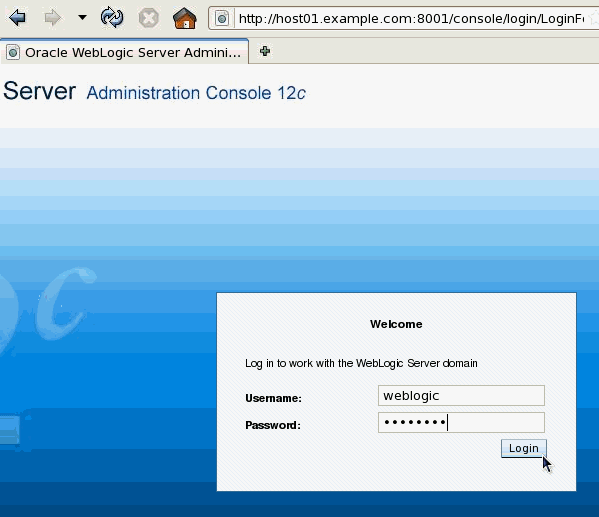
2.After the administration server is up and running, access the WebLogic Server administration console. Open a web browser and enter the URL:
http://hostname:port/console

In this tutorial, that is: http://host01.example.com:8001/console
Note: Use the host name of your host. Also, if you used a different port number for the administration server, use that port instead.
On the Welcome screen, log in using the username and password entered to start the administration server.

3.If any of the managed servers (dizzy1, dizzy2, dizzy3) are running, shut them down.
4.Check the configuration of the machines created in the tutorial titled Oracle WebLogic Server 12c: Creating and Configuring Machines.
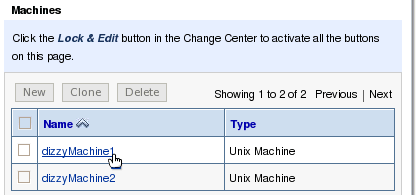
Under Domain Structure, expand Environment (by clicking the + next to it). Then click Machines.

5.In the Machines table, click dizzyMachine1.

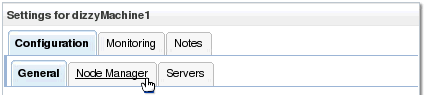
6.Under Settings for dizzyMachine1, click the Configuration tab and the Node Manager subtab.

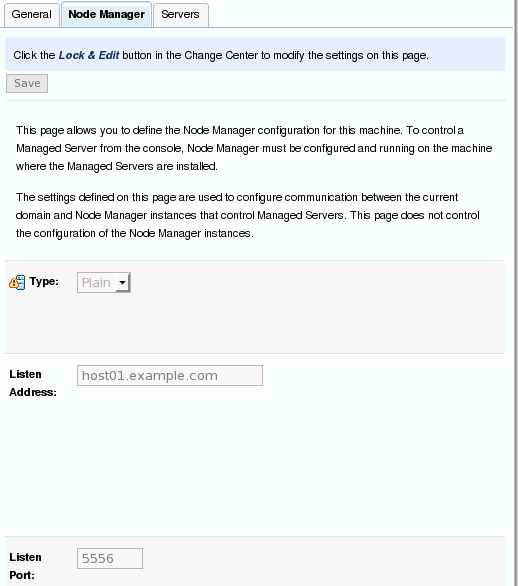
7.Here you can see the settings for the Node Manager for this machine. It has the Type set to Plain (which means the Java-based Node Manager that does not use SSL), the Listen Address set to host01.example.com , and theListen Port set to 5556.

8.Also check the Node Manager settings for dizzyMachine2. Back under the Domain Structure, underEnvironment, click Machines.
In the Machines table, click dizzyMachine2.
Under Settings for dizzyMachine2, click the Configuration tab and the Node Manager subtab.
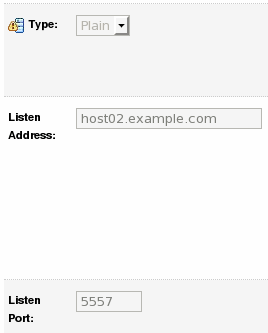
Here you can see the settings for the Node Manager for dizzyMachine2. It has the same settings as the Node Manager for dizzyMachine1, except the Listen Address is set to host02.example.com and the Listen Port is set to 5557.

Configuring Node Manager

To create a new Node Manager home directory on a machine and then configure its settings, perform the following steps:

1.Open a new Terminal on host01, and navigate to the installation directory, . In this tutorial it is: /u01/app/oracle/Middleware.
2.Create a new directory /user_projects/nodemanager/dizzyMachine1.

3.Copy the following file to the dizzyMachine1 directory:/wlserver_12.1/server/bin/startNodeManager.sh.

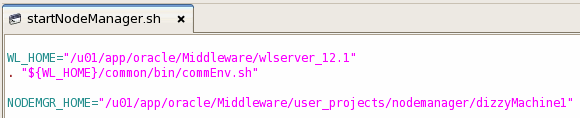
4.Edit the file /user_projects/nodemanager/dizzyMachine1/startNodeManager.sh.
5.Set the NODEMGR_HOME variable to the current path. In this tutorial, it is/user_projects/nodemanager/dizzyMachine1. Then save your changes.

6.Create a new file/user_projects/nodemanager/dizzyMachine1/nodemanager.properties and edit it.
7.Add the following three lines to the new file:
  • ListenAddress=host01.example.com
  • ListenPort=5556
  • SecureListener=false

Then save your changes.

8.Access the second machine, host02.
You will set up node manager here as well, this time for dizzyMachine2:
Create a new directory /user_projects/nodemanager/dizzyMachine2, and copy thestartNodeManager.sh script into this location.
Edit the copied script to set the NODEMGR_HOME variable to the current path. In this tutorial, it is/user_projects/nodemanager/dizzyMachine2. Save the file.
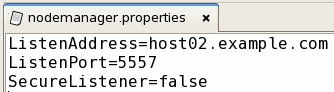
Create a nodemanager.properties file once again, but this time enter the listen address and port number fordizzyMachine2:
  • ListenAddress=host02.example.com
  • ListenPort=5557
  • SecureListener=false

Save this file.

Enrolling Computers with a Domain

To enroll a computer with a domain, so that the Node Manager on that computer will accept requests from the domain, perform the following steps:
1.Access host01. In a Terminal window navigate to /wlserver_12.1/server/bin.
Run the setWLSEnv.sh script to set up the environment needed for WLST as follows:
$ source setWLSEnv.sh

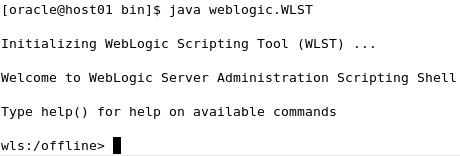
2.Open WLST in interactive mode by entering the following command in the Terminal window:
java weblogic.WLST

3.At the WLST prompt, enter the following command to connect to the running administration server:
wls:/offline> connect('', '', 't3://:')
Replace the sample argument values with those that match your domain environment. In this tutorial, the command is:
wls:/offline> connect('weblogic', 'Welcome1', 't3://host01.example.com:8001')

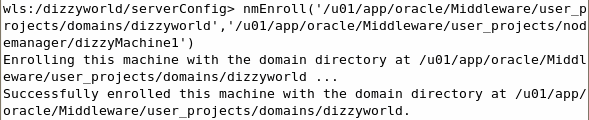
4.Run the nmEnroll() command. This command enrolls the computer on which WLST is running with the domain of the administration server to which WLST is connected. What "enrolling" means is the command downloads two files from the administration server to this computer: nm_password.properties andSerializedSystemIni.dat.
The Node Manager "secret file," nm_password.properties, contains the encrypted username and password used by the adminstration server to authenticate itself to the Node Manager process. This file is placed in the domain directory under /config/nodemanager/.
The file used for encryption and decryption, SerializedSystemIni.dat, is placed in the domain directory under/security/.
In addition, the nmEnroll() command creates or updates the nodemanager.domains file found in the Node Manager home directory. It adds the current domain to the list of domains that this Node Manager is allowed to manage.
The nmEnroll() command has two arguments:
  • The domain home directory on this computer
  • The Node Manager home directory on this computer

In this tutorial, the command is:
nmEnroll('/u01/app/oracle/Middleware/user_projects/domains/dizzyworld',
'/u01/app/oracle/Middleware/user_projects/nodemanager/dizzyMachine1')

Note: Be sure to put the right path to your domain and to your Node Manager when using the command.

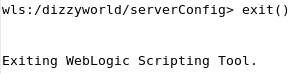
5.Exit WLST by entering the following command at the prompt:
exit()


6.Access host02 and repeat these steps to run nmEnroll() for the dizzyMachine2 Node Manager home directory:
nmEnroll('/u01/app/oracle/Middleware/user_projects/domains/dizzyworld',
'/u01/app/oracle/Middleware/user_projects/nodemanager/dizzyMachine2')

Starting Node Manager

To start Node Manager, perform the following steps:
1.On host01, navigate to /user_projects/nodemanager/dizzyMachine1 and enter:
./startNodeManager.sh

Notice that Node Manager starts for dizzyMachine1.

2.On host02, navigate to /user_projects/nodemanager/dizzyMachine2 and enter:
./startNodeManager.sh

Starting Servers with Node Manager and the Administration Console

To start the managed servers from the console, perform the following steps:
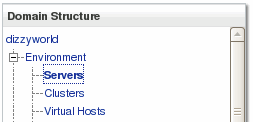
1.Access the WebLogic Server administration console again. In the Domain Structure section, expand Environmentand click Servers.

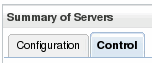
2.Click the Control tab.

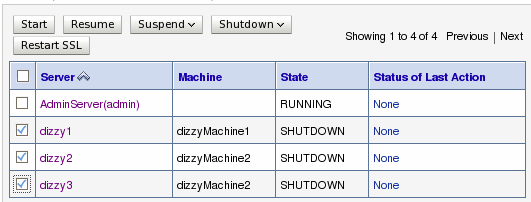
3.Select the check boxes for all of the managed servers (dizzy1, dizzy2, and dizzy3).
Then click the Start button.

4.When prompted for confirmation to start the three servers, click Yes


5.Click the refresh icon to periodically refresh the Servers table.

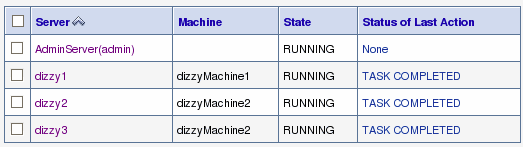
6.After a few minutes, verify that each server's State is "Running."

Aug 12, 2012

Oracle Platform Security Services Overview(OPSS)....

OPSS provides an abstraction layer in the form of standards-based application programming interfaces (APIs) that insulate developers from security and identity management implementation details.

OPSS is the underlying security platform that provides security to Oracle Fusion Middleware including products like WebLogic Server, SOA, WebCenter, ADF, OES to name a few.


In one of my Project, we leveraged OPSS by designing the security flow which starts from ADF to Database. Thanks to OPSS - a core platform security services and Api's.

You can play with OPSS Api's depend upon your security needs. You can find API's Here 

OPSS Architecture:


Feb 13, 2010

Weblogic Authentication Provider

In WebLogic Server, Authentication providers are used to prove the identity of users or system processes. Authentication providers also remember, transport, and make that identity information available to various components of a system (via subjects) when needed. During the authentication process, a Principal Validation provider provides additional security protections for the principals (users and groups) contained within the subject by signing and verifying the authenticity of those principals.

WebLogic supports Authentication Providers that can validate user credentials based on a username-password combination or a digital certificate. The security provider repository, which stores the user and group information, can be implemented in the following ways:
  • As an embedded LDAP server, which is the default used by WebLogic's security providers
  • As an external LDAP store, such as Open LDAP, Active Directory, Novell, or NDS
  • As a DBMS, which can be used to host the data for enterprise applications
  • As a text file, which is used by WebLogic's sample security providers

Users and Groups, Principals and Subjects


user is similar to an operating system user in that it represents a person.


group is a category of users, classified by common traits such as job title. Categorizing users into groups makes it easier to control the access permissions for large numbers of users.

Both users and groups can be used as principals by application servers like WebLogic Server. A principal is an identity assigned to a user or group as a result of authentication.

The Java Authentication and Authorization Service (JAAS) requires that subjects be used as containers for authentication information, including principals. Each principal stored in the same subject represents a separate aspect of the same user's identity, much like cards in a person's wallet. (For example, an ATM card identifies someone to their bank, while a membership card identifies them to a professional organization to which they belong.)

The figure 1-1 below illustrates the relationships among users, groups, principals, and subjects.


As part of a successful authentication, principals are signed and stored in a subject for future use. A Principal Validation provider signs principals, and an Authentication provider's LoginModule actually stores the principals in the subject. Later, when a caller attempts to access a principal stored within a subject, a Principal Validation provider verifies that the principal has not been altered since it was signed, and the principal is returned to the caller (assuming all other security conditions are met).


The Authentication Process:


The Figure 1-2 below shows a behind-the-scenes look of the authentication process for a fat-client login. JAAS runs on the server to perform the login. Even in the case of a thin-client login (that is, a browser client) JAAS is still run on the server.


When a user attempts to log into a system using a username/password combination, WebLogic Server establishes trust by validating that user's username and password, and returns a subject that is populated with principals per JAAS requirements.

The Authentication Provider adheres to the standard JAAS framework by structuring the authentication sequence on top of a number of configurable JAAS LoginModules. LoginModules are critical components of an Authentication Provider, as they are responsible for authenticating users within a security realm and populating the subject with the required principals (existing users and groups).

WebLogic demands that you have at least one authentication provider configured in your security realm.

   Authentication Providers’ Control Flag Values :


The control flag of each authentication provider can take the following values:


REQUIRED: This option is the default setting for any Authentication Provider. A required Authentication Provider is always invoked, irrespective of the control flag settings on other providers. The overall authentication cannot succeed if any REQUIRED provider fails. Thus, REQUIRED providers are always invoked, and overall authentication fails if any one of them fails.

REQUISITE: This option also requires the Authentication Provider to succeed during the login sequence. However, all of the REQUISITE providers need not be invoked for the overall authentication to succeed. If a REQUISITE provider succeeds, the authentication proceeds as normal to other providers in the sequence. However, if it fails, the overall authentication cannot succeed, and control is immediately passed back to the application once all REQUIRED providers in the login sequence have been invoked.

SUFFICIENT: This option does not require the Authentication Provider to succeed during the login sequence. If a SUFFICIENT provider does succeed, the overall authentication proceeds to ensure that only the remaining REQUIRED providers in the login sequence are executed. However, if it fails, the overall authentication proceeds as normal to the other providers in the login sequence.

OPTIONAL: This option does not require the Authentication Provider to succeed during the login sequence. Regardless of whether an OPTIONAL provider succeeds, the authentication proceeds to other providers that have been configured as part of the login sequence.

When multiple LoginModules are used to authenticate a user, the authentication occurs in two phases. During the first phase, the modules are asked to attempt to authenticate the user. Only if the modules pass this phase is the second phase invoked. During thesecond phase, each module commits the login and assigns the relevant principals to the subject. The control flags influence how this two-phase commit occurs. Thus, for the overall authentication to succeed, the following rules must be met:
  • All REQUIRED modules must be invoked, and each must successfully validate the user.
  • Any REQUISITE module that gets invoked must successfully validate the user.
  • If a SUFFICIENT module successfully validates the user, the overall success depends on the success of all REQUIRED modules, and any REQUISITE modules invoked before the SUFFICIENT module.
  • If the login sequence consists only of OPTIONAL modules, at least one module must successfully validate the user.